Account Overview
Welcome to Flip for Business! We're thrilled to have you on board. To make your integration smoother, we’ve put together this page to guide you through everything you need to know as you get started with Flip. To integrate with Flip for Business, you’ll first need to create Flip for Business account. After registration, log in to the Flip Dashboard to access the Test Mode. However for Live Mode (Production) and access all Flip for Business features, you need verify your business account first.
Create Your Flip for Business Account
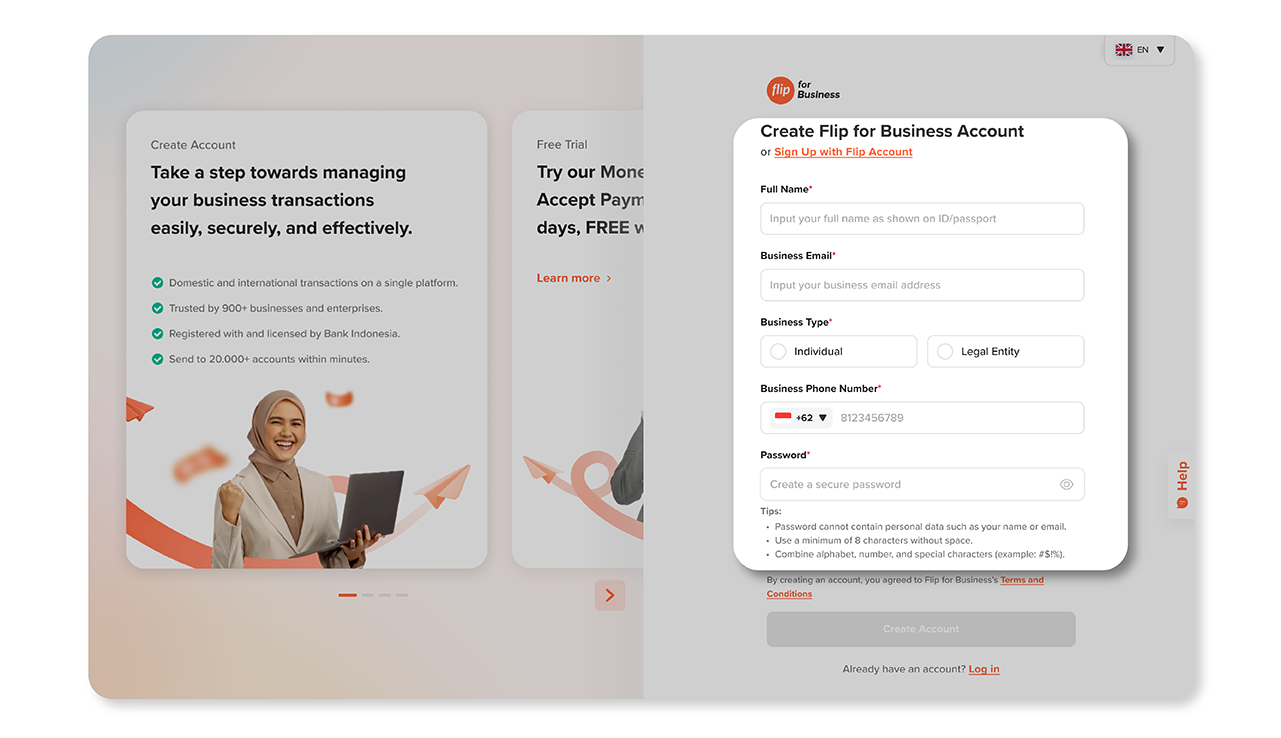
There are two ways to sign up, with your email address and phone number or by clicking Sign Up with Flip Account if you already have an Flip personal account. This guideline is to start making your Flip Business Account with your email and phone number, just follow these 2 easy steps!
- Click on this link to register your business. Make sure to fill out all the necessary information.
- Completing the registration process, by confirming your email address and your phone number for OTP, then you will be ready to test out the Flip Dashboard
If you are still having trouble figuring out how to sign up Flip for Business Account, you can visit more details instructions here
Access Flip for Business Dashboard
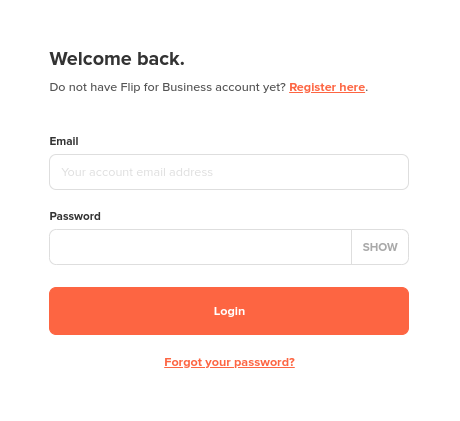
To access Flip for Business dashboard, please complete the following steps:
- Log in by clicking this link
- Input your email address and password
- Then click Login button
Upon your email and password is correct, our dashboard will displayed.
- Our dashboard session will expire in 3 hours, so you will need to log back in if nothing happens.
- Your login submission will be paused in 60 minutes if the wrong password is entered 4 times.
Currently, for forgot password. You need to send a request to support@flip.id using your registered email on Flip for Business. Fill in the subject: Flip for Business - Request Password Change.
Explore Test Mode
Flip for Business offers a comprehensive Test Mode to help you seamlessly integrate and test our payment system without impacting real transactions. Test Mode allows you to simulate various payment scenarios to ensure your implementation is flawless before going live. We will give you a virtual and non withdrawable Flip Deposit Balance in IDR 950.000.000.000.
Dashboard Test Mode
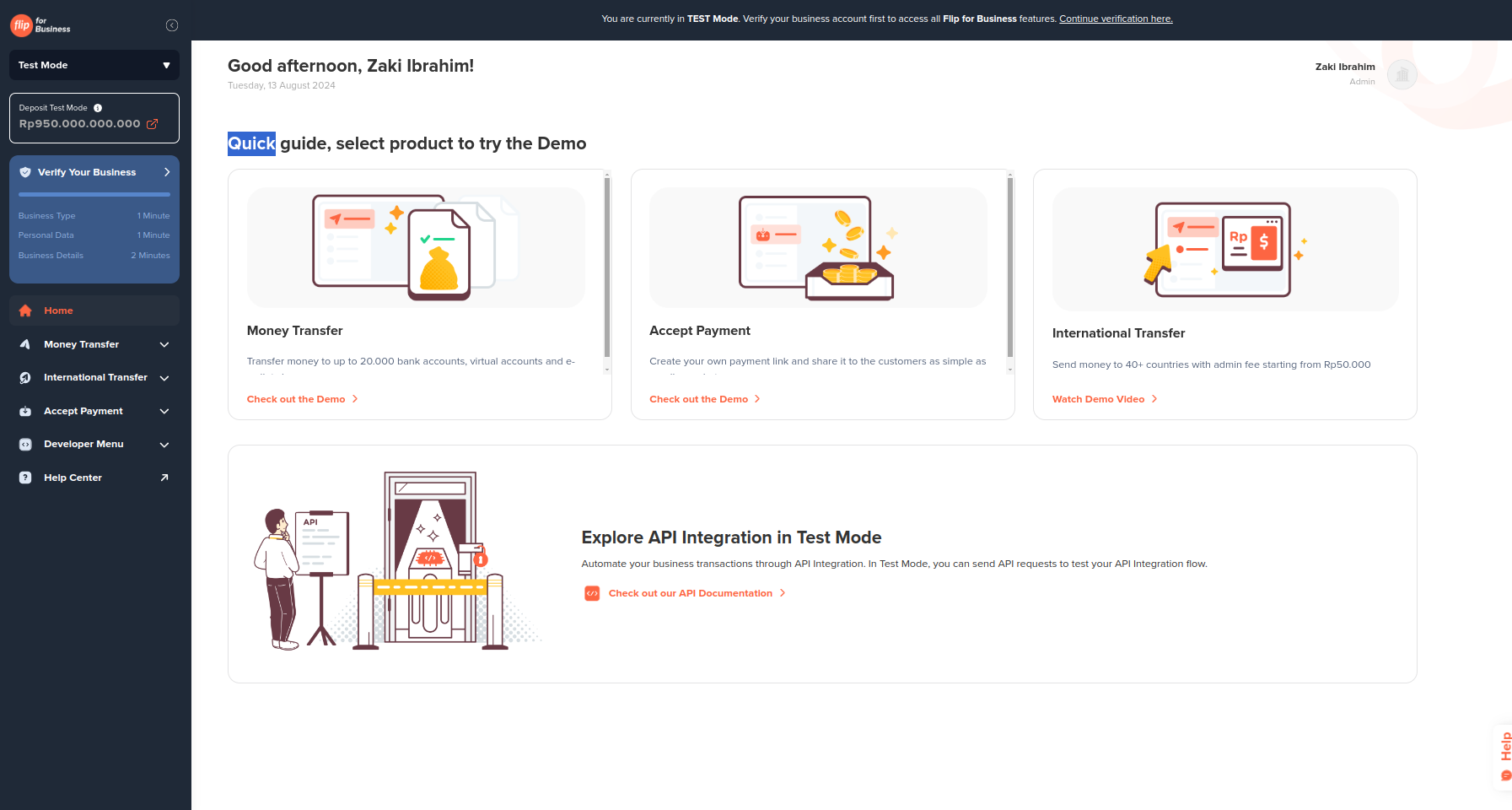
In Dashboard Test Mode, you can explore the Flip Dashboard with a simulated environment, All features are available as they would be in the live environment, but any transactions processed will not affect real accounts or funds. This mode mirrors the live environment, enabling you to practice:
- Money Transfer / Disbursement
- Accept Payment with Payment Link
- Managing transactions
- Developer Menu
All actions performed in this mode are purely for testing purposes and will not affect actual customer data or funds, making it ideal for training and preparation. You can always return to the test mode dashboard when your account becomes live by choosing your dashboard environment from the option in the upper left corner of your dashboard. For more detailed guidance on using Flip dashboard, visit our Dashboard Usage page.
API Test Mode
API Test Mode enables you to interact with the Flip API using test credentials. This mode is crucial for developers to simulate payment processing, handle errors, and understand API responses. With API Test Mode, you can perform end-to-end testing, including creating and processing transactions, without the risk of affecting real-world data. It's designed to help you debug and validate your integration under various scenarios, ensuring a smooth transition to production. For comprehensive details on our API endpoints and how to use them, please refer to our API Reference.
Switching Environment
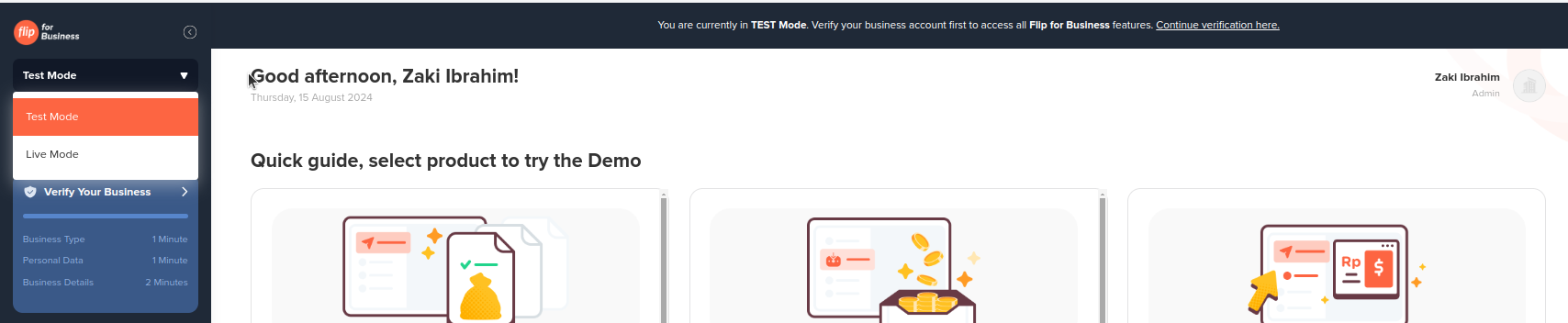
You can easily switch betweem Test Mode and Live Mode in the Flip Dashboard. Follow these steps to ensure a smooth transition:
Step to Switch Environment:
-
Locate the Envionment Selector
On the left side of the dashboard, you will find the Environment Selector dropdown, which shos the current mode (either "Test Mode" or "Live Mode"). -
Check Your Current Environment
The environment is displayed along with an indicator, such as "Deposit Test Mode" with the test balance shown and the menu sidebar is dark color. This confirms you’re in Test Mode. -
Open the Environment Selector and Select Your Environment Want to Use
Click on the dropdown to open the Environment Selector. You will see two options:- Test Mode: This used for sandbox testing with no impact on real data.
- Live Mode: Select this when you are ready to move your operations to production and start processing real transactions.
- Test Mode:
If you select Test Mode, the left menu section will appear in a dark color. - Live Mode:
When you select Live Mode, the left menu section will change to a white color. This visual cue helps you quickly identify which environment you’re currently in.