Handling Notification
In Flip, when an event occurs, we will send it via callback/webhook asynchronously. Here are some examples of events for which Flip will send a callback:
- Bank Account Inquiry Callback: When the inquiry process is complete, Flip will send the final status of the account along with the account holder's name.
- Disbursement Callback: Once a money transfer or international transfer is completed, Flip sends the final status, whether successful or failed.
- Agent Verification Callback: When the Agent Verification process is complete, Flip will send a callback with the KYC status of the agent.
- Accept Payment Callback: Flip will send a callback when a bill has been paid by the customer or when a bill has expired.
- Bank Status Callback: Flip will send a callback if a bank is undergoing maintenance or has returned to normal operations.
Your callback URL can be configured in Flip for Business Dashboard.
Best Practice to Handle Notification
- Implement Notifications in an Idempotent way : In extremely rare cases, Flip may send multiple callbacks for the same inquiry or transaction event. This should not cause double entries on the partner’s or merchant’s end. To prevent this, please use an idempotency key or inquiry key to track the entries.
- Use Mock Webhook Requests for development : For testing during development, it can be useful to set up mock HTTP requests to your application. You can use tools like curl from the command line or a desktop application such as Postman. You can start by using the sample callback requests from Flip's API Reference for your own tests, or send Flip callback to services like Webhook.site to capture and review the HTTP requests being sent.
- Validate callback requests are coming from Flip : You need to ensure that the callbacks received are genuinely from Flip and not from any third party accessing your callback URL. You can validate callbacks from Flip using the Validation Token that Flip sends. This token is unique for each environment and can be found on the Flip for Business Dashboard, Manage API menu. If the callback contains the correct Validation Token, you can proceed with processing the callback; otherwise, it should be ignored.
- Check the Status :
Check the status in the callback to ensure that the process was successful.
- For Disbursement Callback :
- status :
DONE, indicates that the transfer process is successful and the fund is received by the beneficiary.
- status :
- For Accept Payment Callback :
- status :
SUCCESSFUL, indicates that the bill is successfully paid by the customer.
- status :
- Bank Account Inquiry Callback :
- status :
SUCCESS - account_holder : name of the beneficiary
- status :
- Agent Verification Callback :
- kyc_status :
UPLOAD_IDENTITY_SELFIE_SUCCESSandAPPROVED. First callback indicates that the upload data process is successful and you can continue to submit the KYC. Second callback indicates that the verification is Approved and you can use money transfer .
- kyc_status :
- Bank Status Callback
- status :
OPERATIONAL, indicates that the beneficiary bank is operational and disbursement process will be processed as soon as possible.
- status :
- For Disbursement Callback :
- Use Check Status API :
In extremely rare cases, the callback may get delayed because of transaction spikes. If you do not receive a callback, please use the Check Status API to check for current status of the transaction.
- Money Transfer & Special Money Transfer : Get Disbursement by ID or Idempotency Key
- Agent Money Transfer : Get Transaction by ID
- International Transfer : Get International Transfer by ID
- Accept Payment : Get Payment
- Responsding to a Callback : Flip set the timeout to 30 seconds. When Flip sends a callback, you must respond with an HTTP status code of 200 within 30 seconds. If you respond after 30 seconds or with any status code other than 200, Flip will consider the callback delivery as failed and will retry sending it.
- Automatic Retry : If your callback URL does not respond within 30 seconds or responds with an HTTP code other than 200, Flip will retry sending the callback up to 5 times, with a 2-minute interval between each attempt.
- Manual Retry :
Flip also provides a manual retry option for webhooks directly from the Flip for Business Dashboard, allowing you to resend callbacks for specific transactions.
To manually resend a callback,
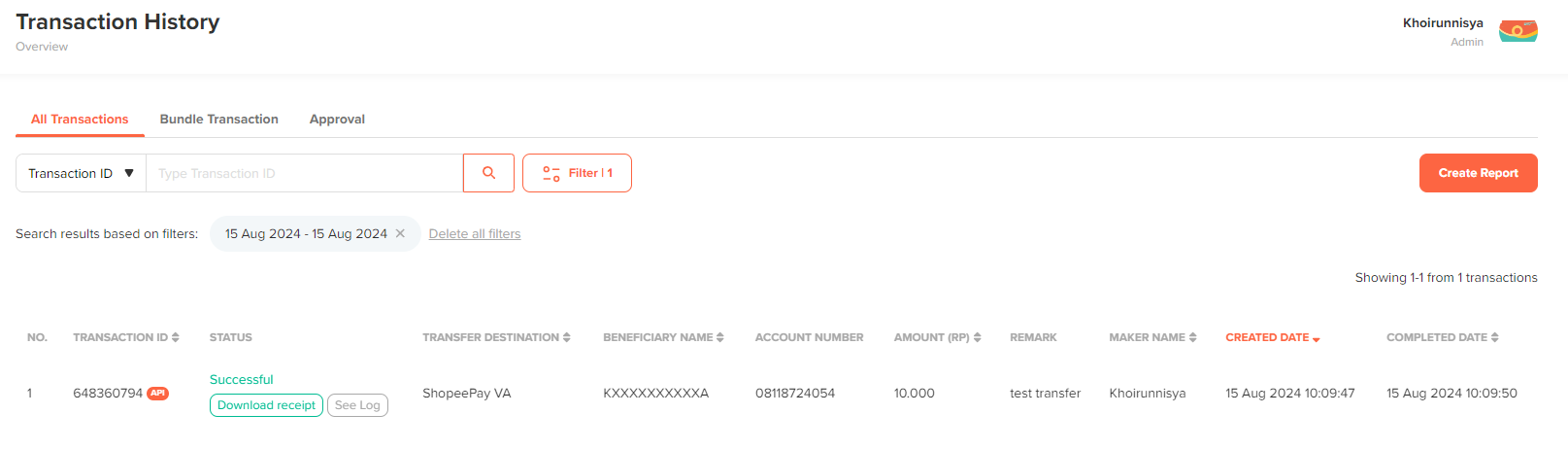
- Go to the Transaction History menu, locate your transaction ID, and click the "See Log" button in the Status column.
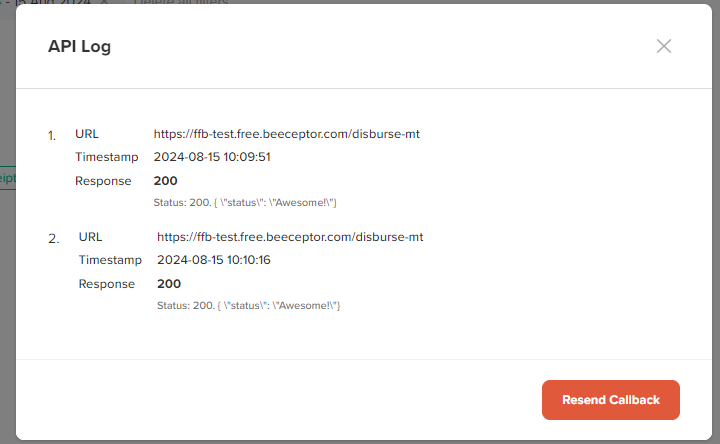
- Then, click "Resend Callback."
- Failed Callback Email Notification :
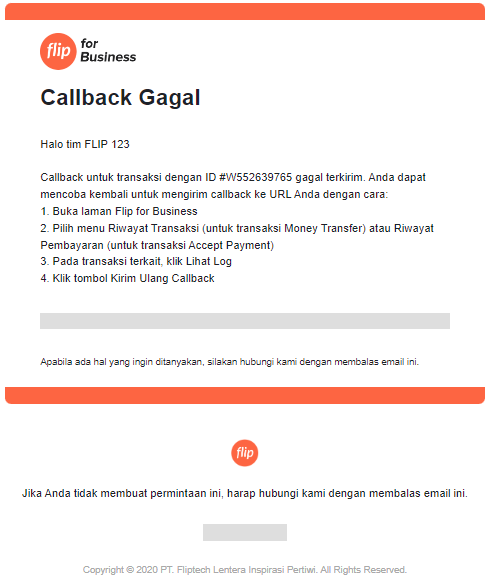
Flip sends a failed callback notification email to the registered business owner's email address whenever a callback delivery fails.
This email notification helps you monitor any failed webhook requests that may need your attention, as they could potentially disrupt your operations.