International Transfer
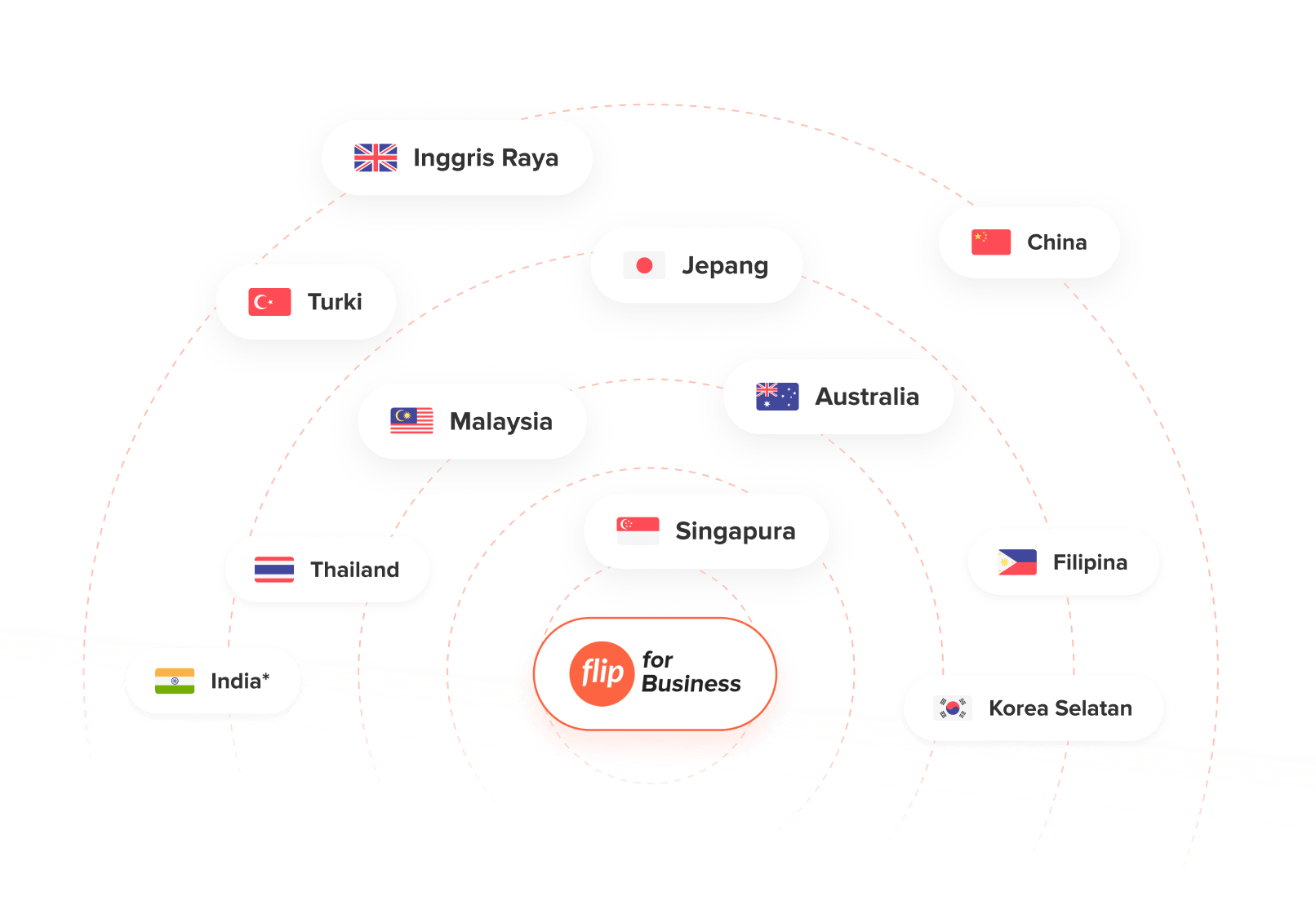
International Transfer on Flip Dashboard
You can make international transfer transactions on the Flip for Business dashboard in various ways, including single input, multiple input, or bulk upload using an Excel format. Flip provides multiple options to simplify the process and cater to your specific needs.
Prerequisites
- Access to Flip Dashboard: Ensure you have access to the Flip Dashboard.
- User Role: Make sure your user role is one of the following: Admin, Executor, or Maker.
Methods of Making a International Transfer
There are two methods to make a international transfer on the Flip Dashboard:
- Using Single/Multi Input
- Bulk via Excel
- 1. Using Single/Multi Input
- 2. Bulk via Excel
1. Using Single/Multi Input
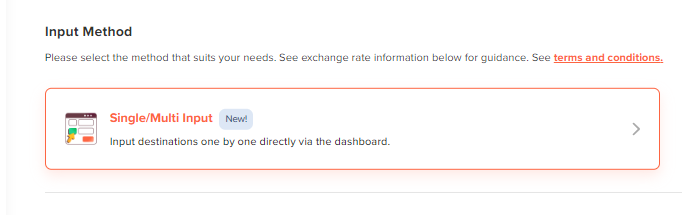
- Open Menu: Navigate to
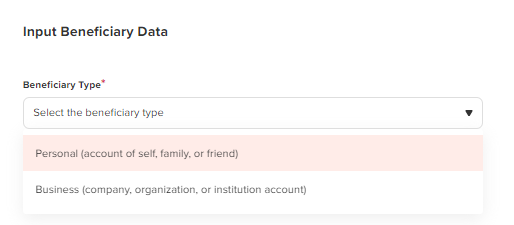
International Transfer->New Transaction->Single/Multi Input. - Choose Beneficiary Type: Select the benficiary type, Personal or Business.
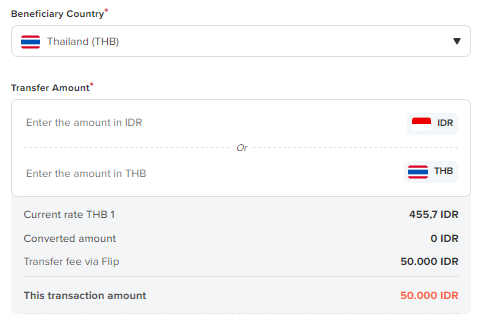
- Choose Beneficiary Country: Select the beneficiary country and enter the transaction amount. You can input the amount in IDR and Flip will automatically convert it to the destination country's currency.
- Input Beneficiary Details: The required fields may vary depending on the destination country.
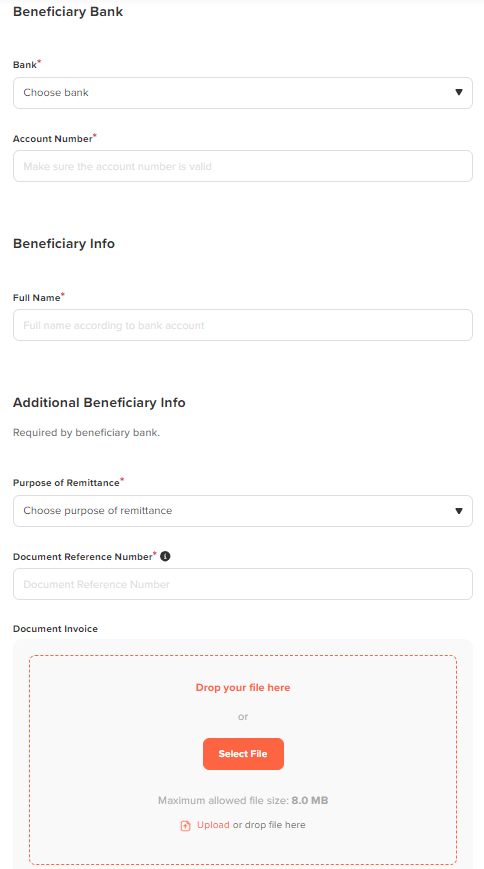
- Choose Beneficiary Bank.
- Input Account number.
- Input Beneficiary Full Name.
- Choose Purpose of Remittance
- Enter the Document Reference Number
- Upload Document invoice
- Add Transaction: Click the
Add to Beneficiary Listbutton.
- If you need to add another transaction, repeat from step 2.
- Continue to Payment: After adding transactions, click the
Continue to Paymentbutton.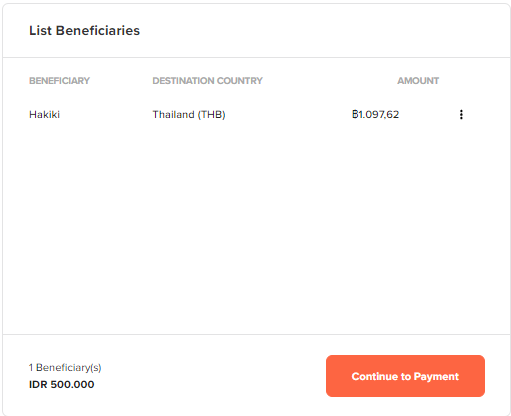
2. Using Upload Excel

- Open Menu: Navigate to
International Transfer->New Transaction->Upload Excel. - Download Excel Template:
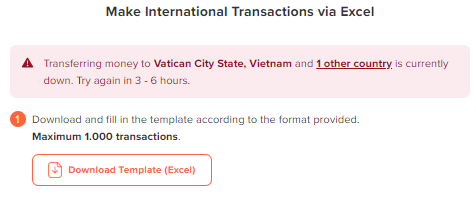
- Input Details Transaction to the template:
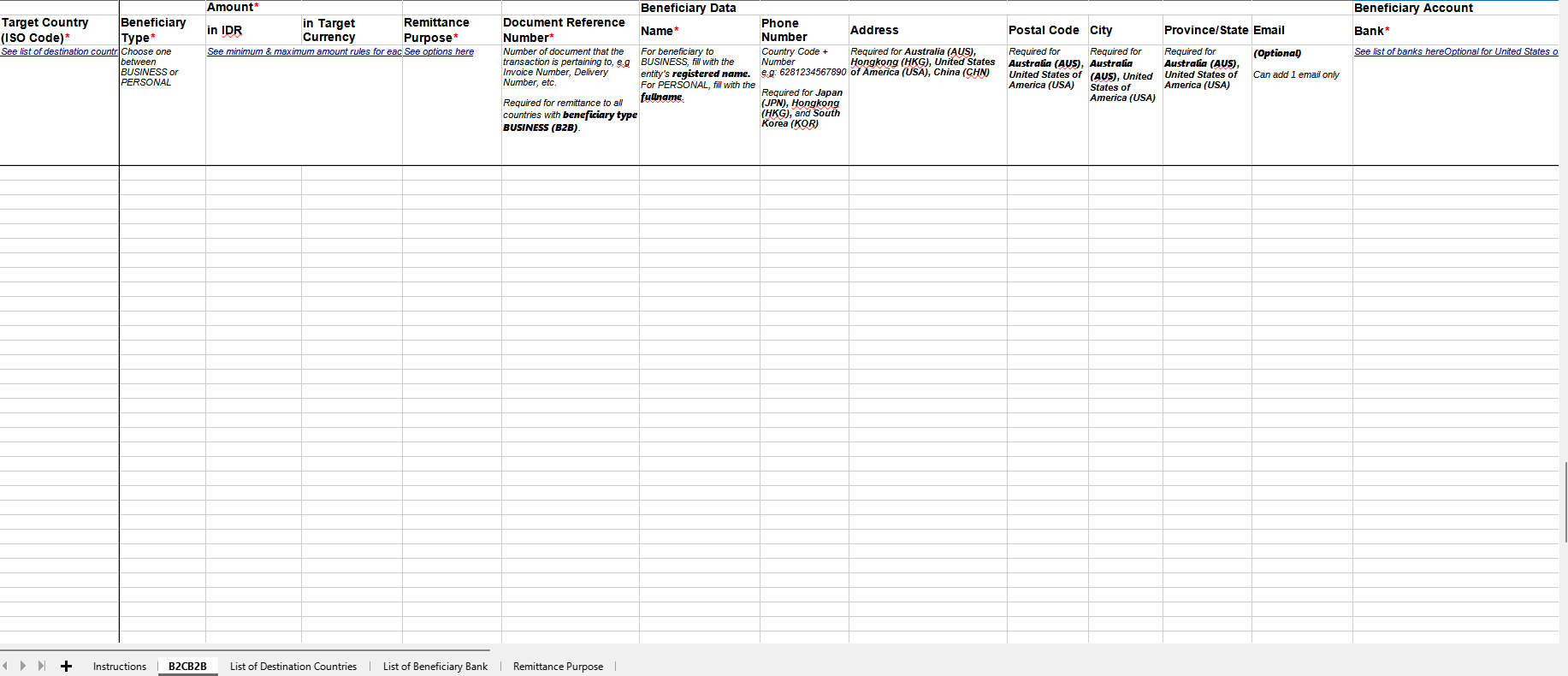
- Input Amount
- Input Beneficiary Bank
- Input Account Number
- Input Beneficiary Full Name
- Input Remittance Purpose
- Input Document Reference Number
- Upload Document Invoice
- Upload Excel Template: Upload the completed Excel file that contains the transaction details. Make sure all required fields are filled in accurately according to the destination country.
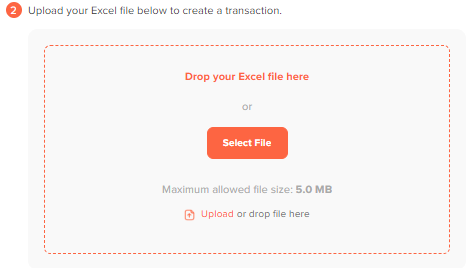
- Review transactions: Review all the transactions you’ve uploaded. You can edit any details if necessary, such as the beneficiary’s name, amount, or other transaction-specific information. Double-checking this ensures that all information is correct before proceeding with the next steps.
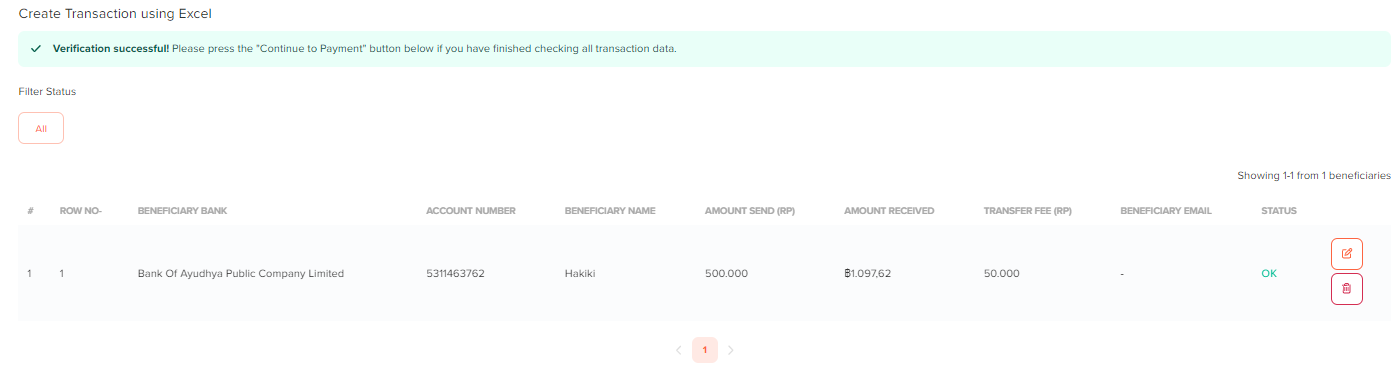
- Continue to Payment: After review transactions, click the
Continue to Paymentbutton.
Next Steps:
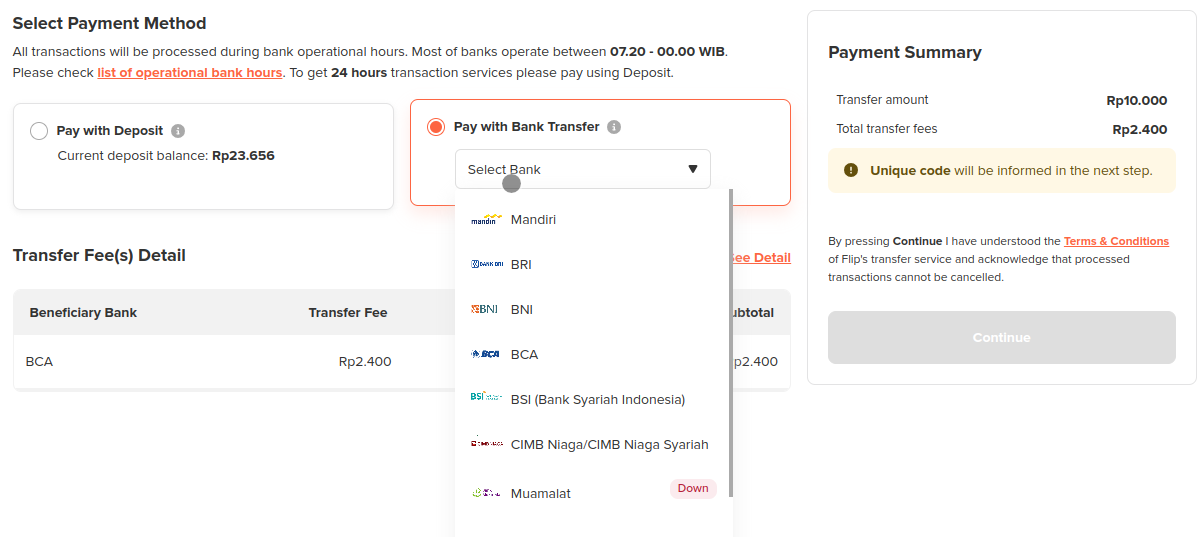
- Select Payment Method: Choose the payment method for disbursing the funds, and click "Continue". There are two options:
- Option 1: Pay with Deposit The transfer will be made using your available Flip deposit balance.
- Option 2: Pay with Bank Transfer Flip will provide a unique amount that you need to transfer to Flip, which will then be used as the source of funds.
- Opt 1: Pay with Deposit
- Opt 2: Pay with Bank Transfer
- Proceed with Payment Option 1:
After click Continue to Payment You need to choose "Pay with Deposit" and click "Continue".
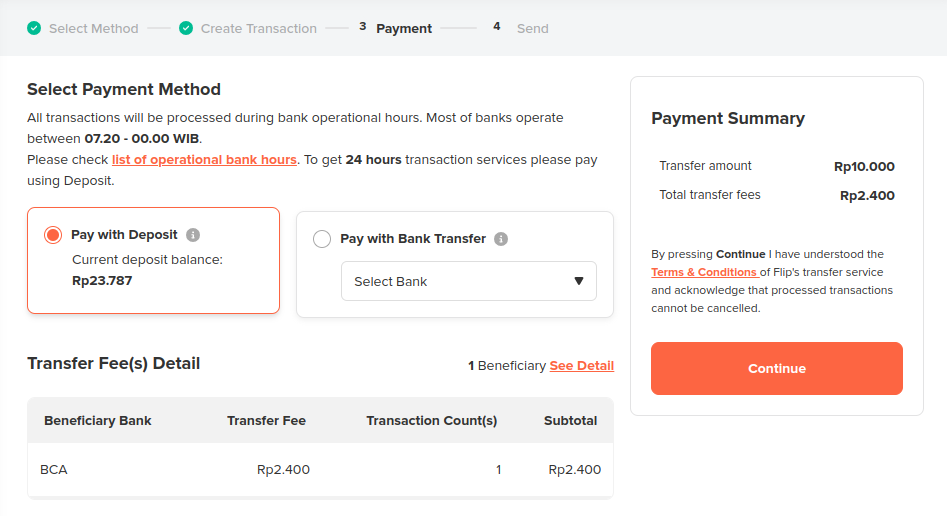
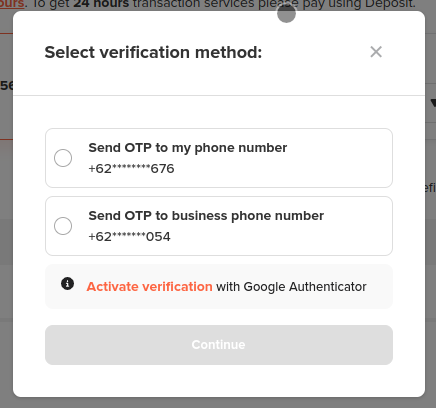
Then you will be prompted to choose the phone number, that will be used to receive the OTP via SMS for verification.
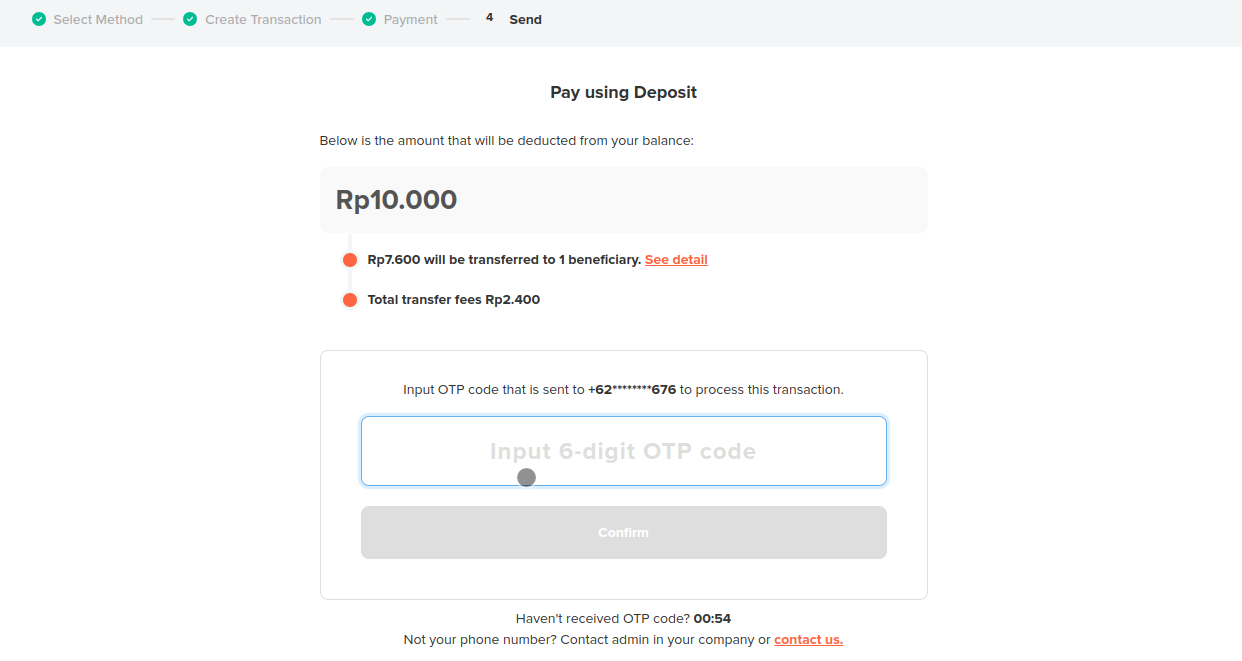
- Input 6 digits OTP and click "Confirm"
- Proceed with Payment Option 2:
After click Continue to Payment You need to choose "Pay with Bank Transfer" and click "Continue".
And You will be redirected to a page with details of the amount and Flip bank account number to which you need to transfer the funds.
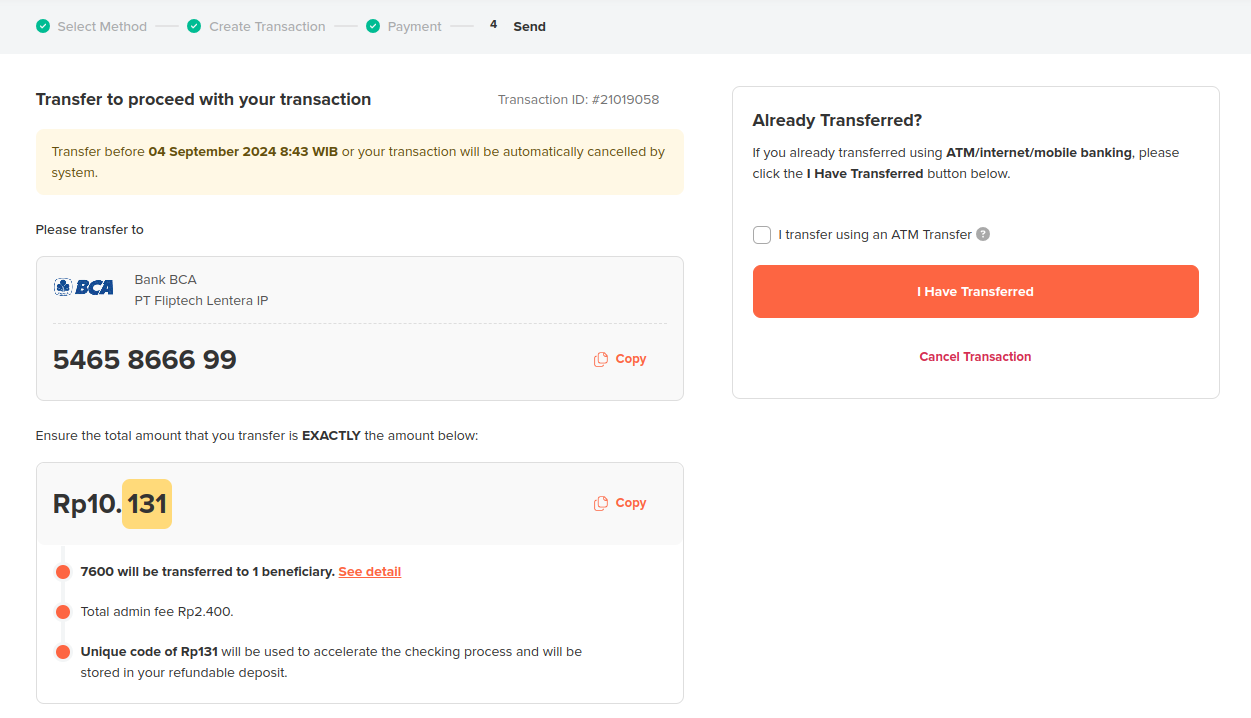
- Confirm Payment: After transfer your fund, you need to click "I Have Transferred"
- Transaction History: After completing the steps, you will be redirected to the
Transaction Historymenu, where you can check your transaction status.