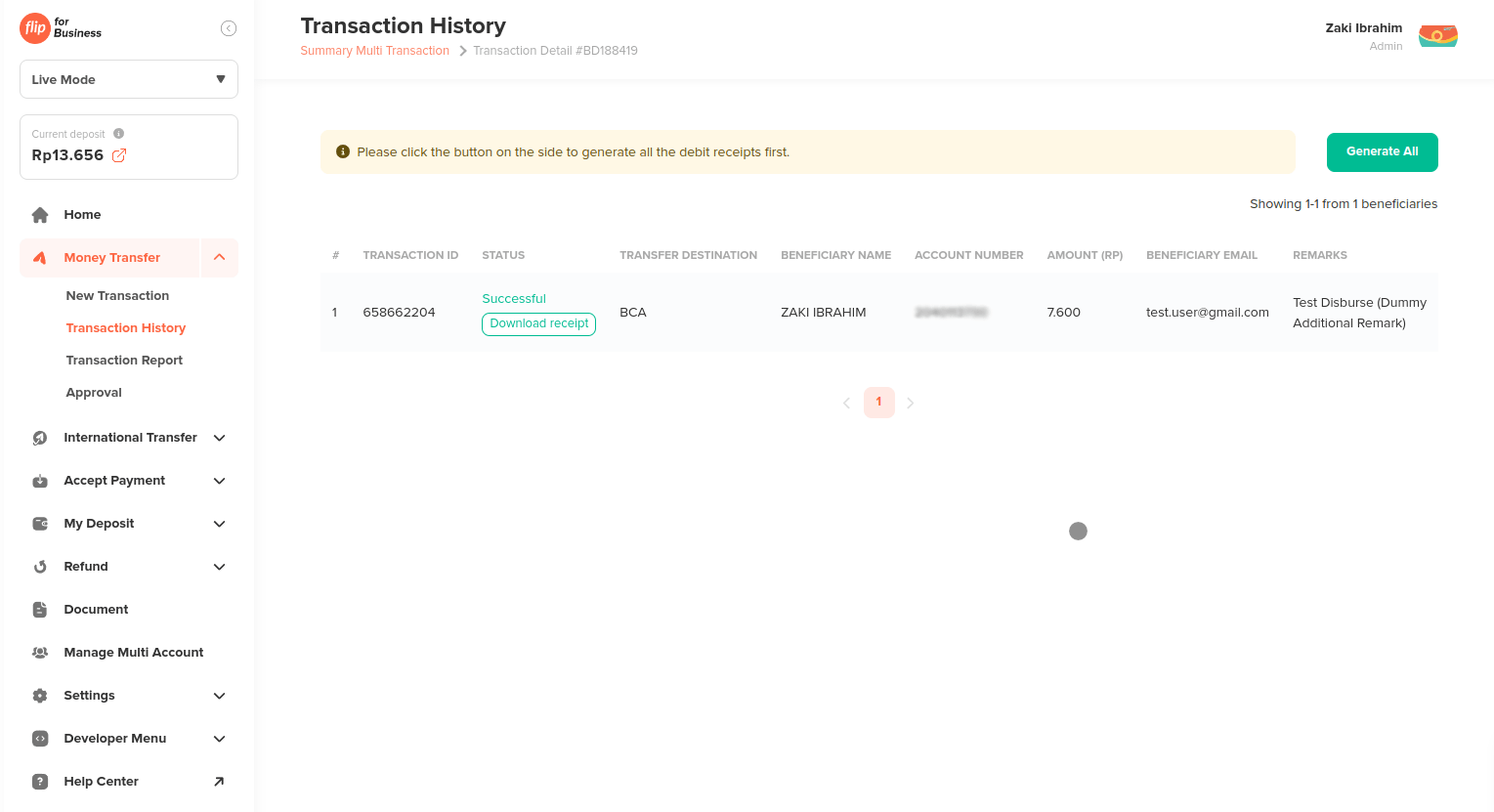
Money Transfer / Disbursement

Money Transfer on Flip Dashboard
Making a money transfer on the Flip Dashboard is straightforward and can be done using a variety of methods. Whether you need to transfer funds to a single recipient, multiple recipients, or use a pre-prepared beneficiary list, Flip provides flexible options to suit your needs. This guide will walk you through the process step-by-step, ensuring that your transactions are completed smoothly and securely.
Prerequisites
- Access to Flip Dashboard: Ensure you have access to the Flip Dashboard.
- User Role: Make sure your user role is one of the following: Admin, Executor, or Maker.
Methods of Making a Money Transfer
There are three methods to make a money transfer on the Flip Dashboard:
- Using Single/Multi Input
- Bulk via CSV/Excel
- Using Beneficiary Format
- 1. Using Single/Multi Input
- 2. Bulk via CSV/Excel File
- 3. Pre-Prepared Beneficiary
1. Using Single/Multi Input
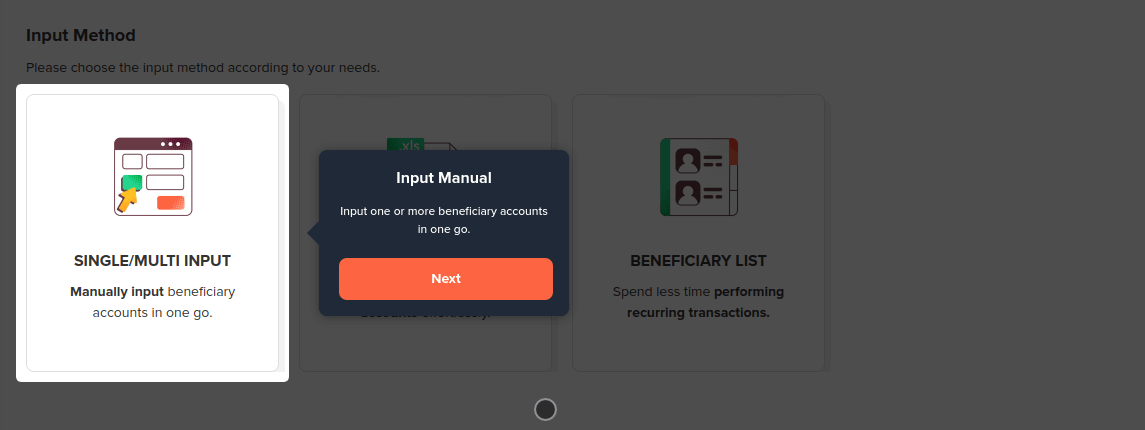
- Open Menu: Navigate to
Money Transfer->New Transaction->Single/Multi Input. - Choose Destination: Select the destination Bank, VA or E-Wallet.
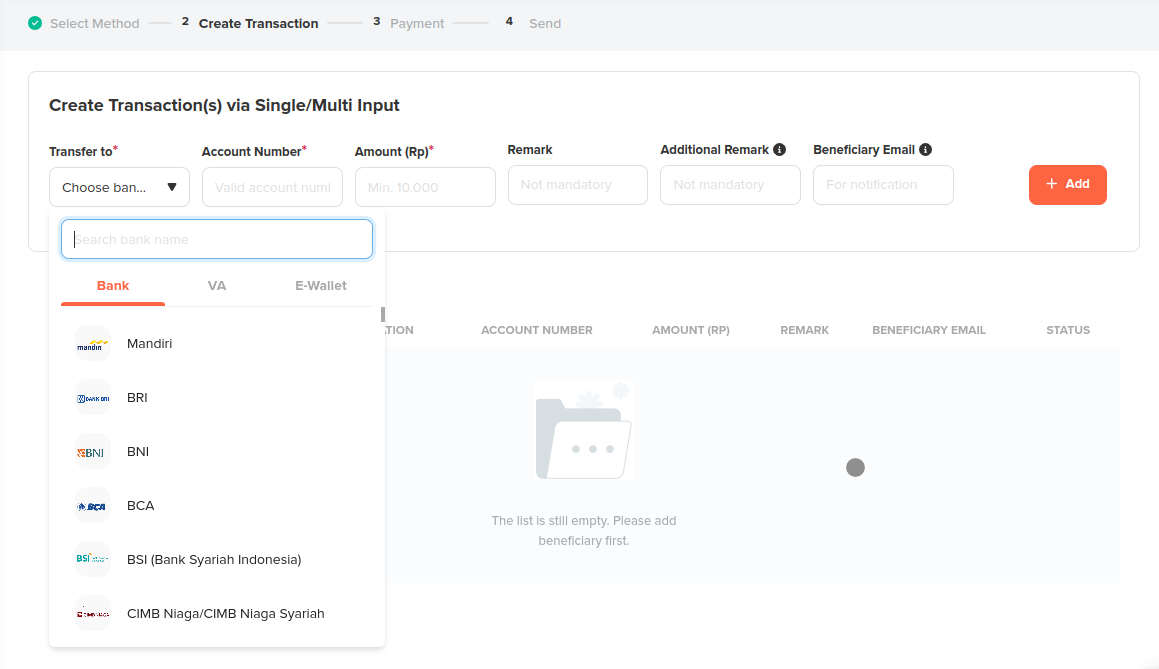
- Input Details:

- Enter the account number.
- Input the transaction amount.
- Optionally, fill in the
Remark,Additional Remark, andBeneficiary Emailfields.
- Add Transaction: Click the
Addbutton.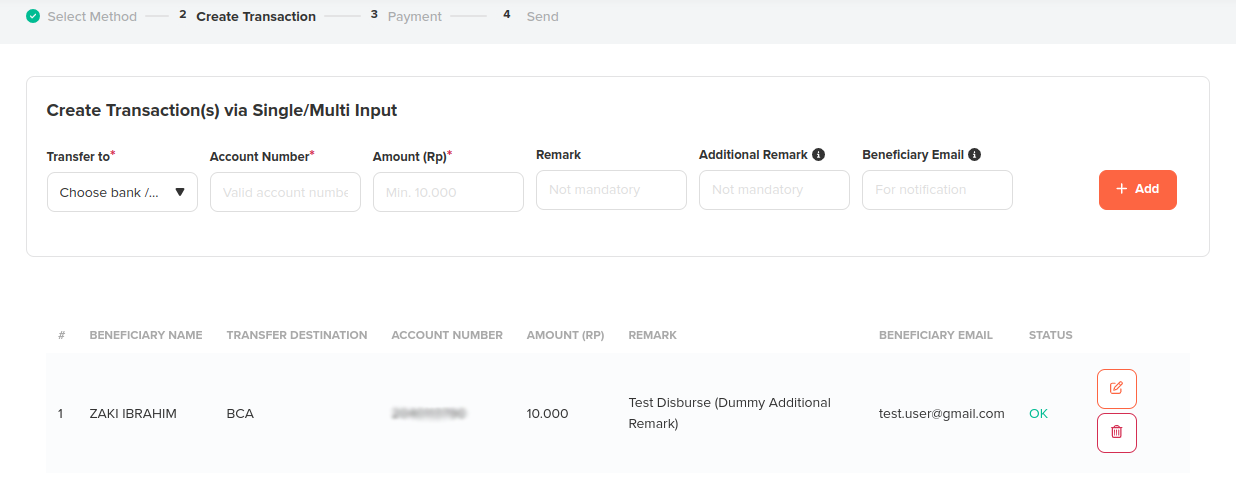
- If you need to add another transaction, repeat from step 2.
- Continue to Payment: After adding transactions, click the
Continue to Paymentbutton on the right bottom page.
2. Bulk via CSV/Excel File
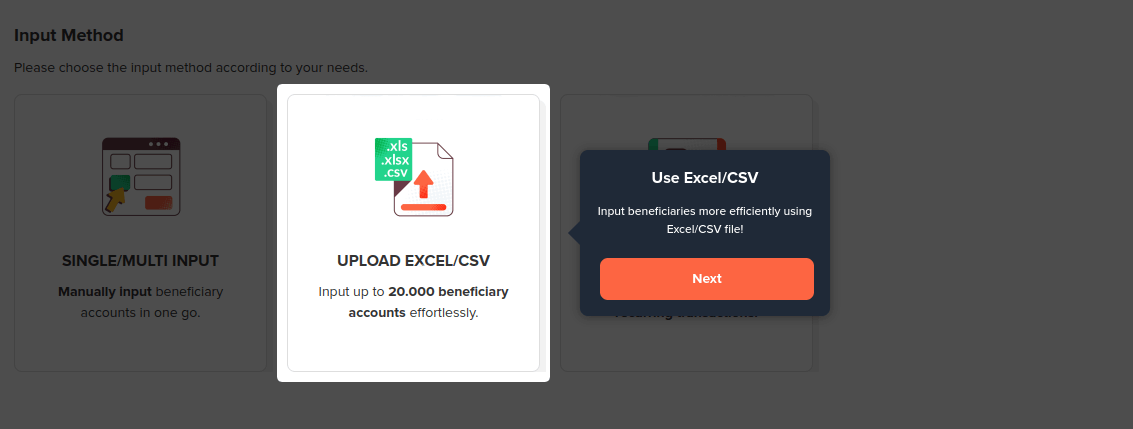
- Open Menu: Navigate to
Money Transfer->New Transaction->Upload Excel/CSV. - Download Sample File: Select the sample file csv/excel that you want to use. Then update the csv/excel data to use your own information.
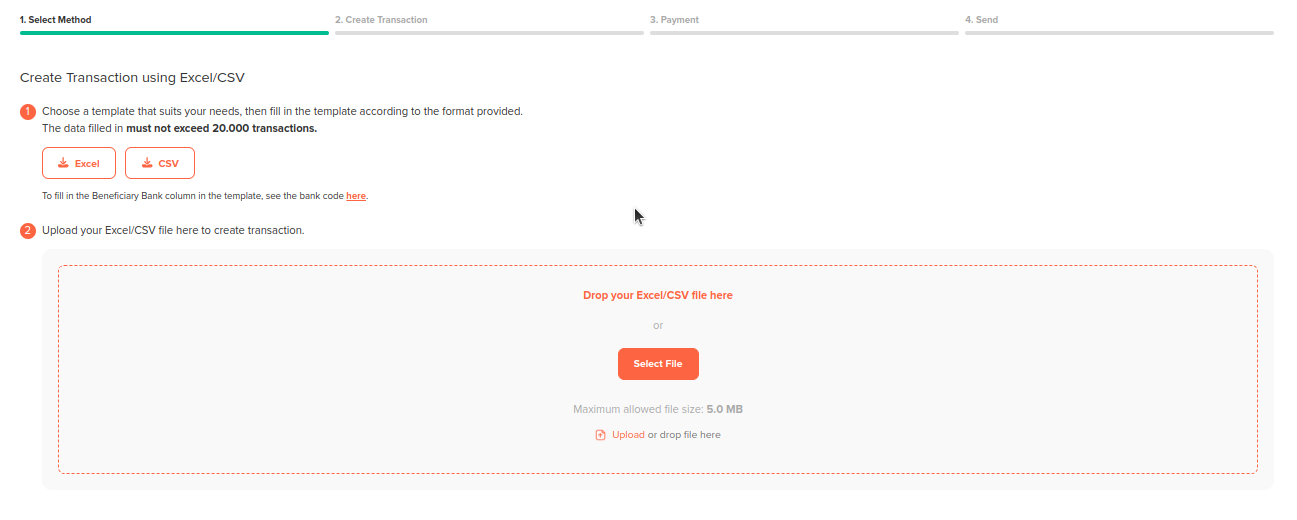
- Update Data Beneficary in Excel/CSV File:

- Input bank destination
- Input the account number.
- Input the transaction amount.
- Add Bulk File: Click the
Selectbutton.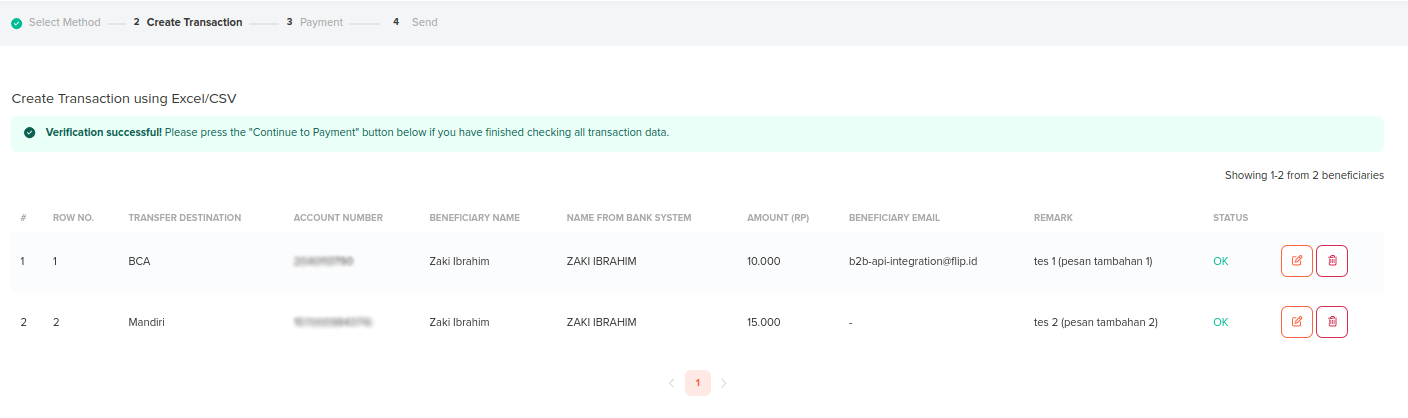
- Continue to Payment: After adding transactions, click the
Continue to Paymentbutton.
3. Pre-Prepared Beneficiary
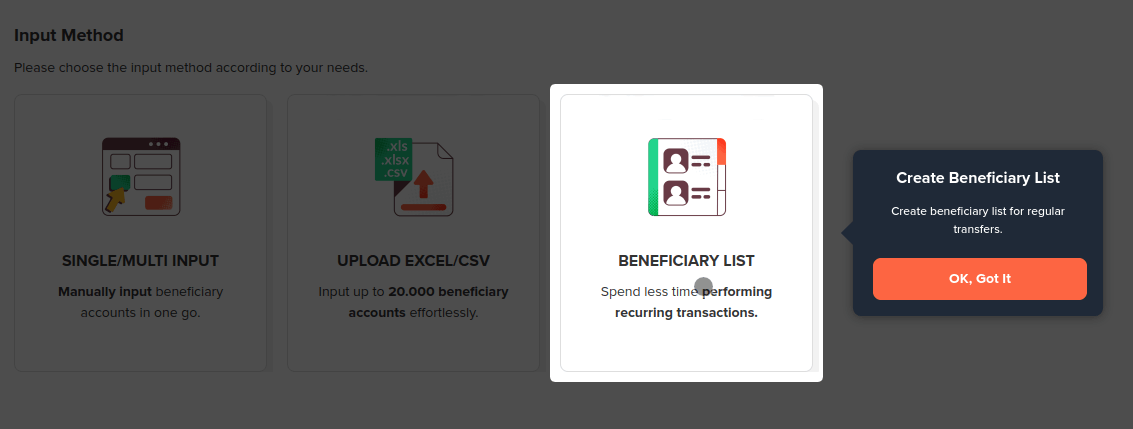
-
Open Menu: Navigate to
Money Transfer->New Transaction->Using Beneficiary Format. -
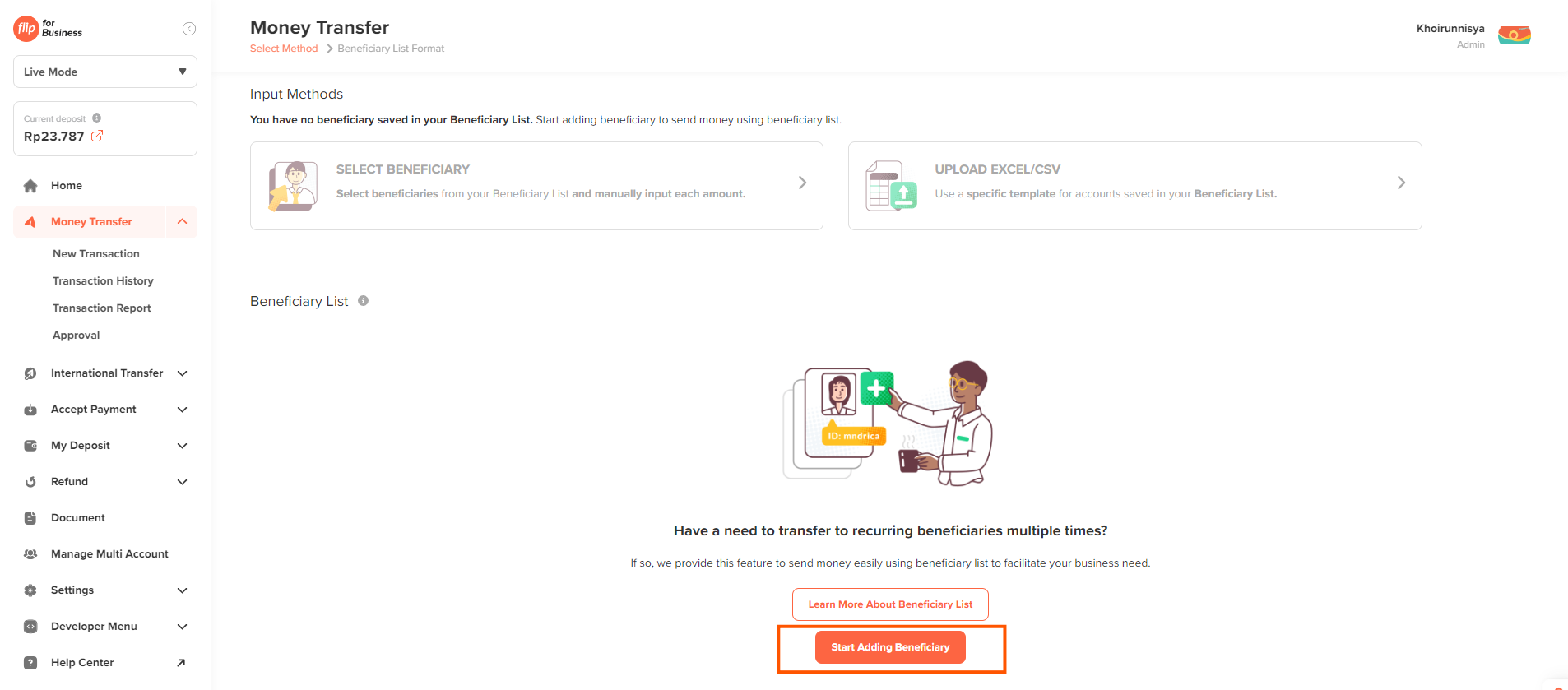
Add Beneficiary List: If you don't yet have a saved beneficiary list, click 'Start Adding Beneficiary' button.
-
Download Sample file:
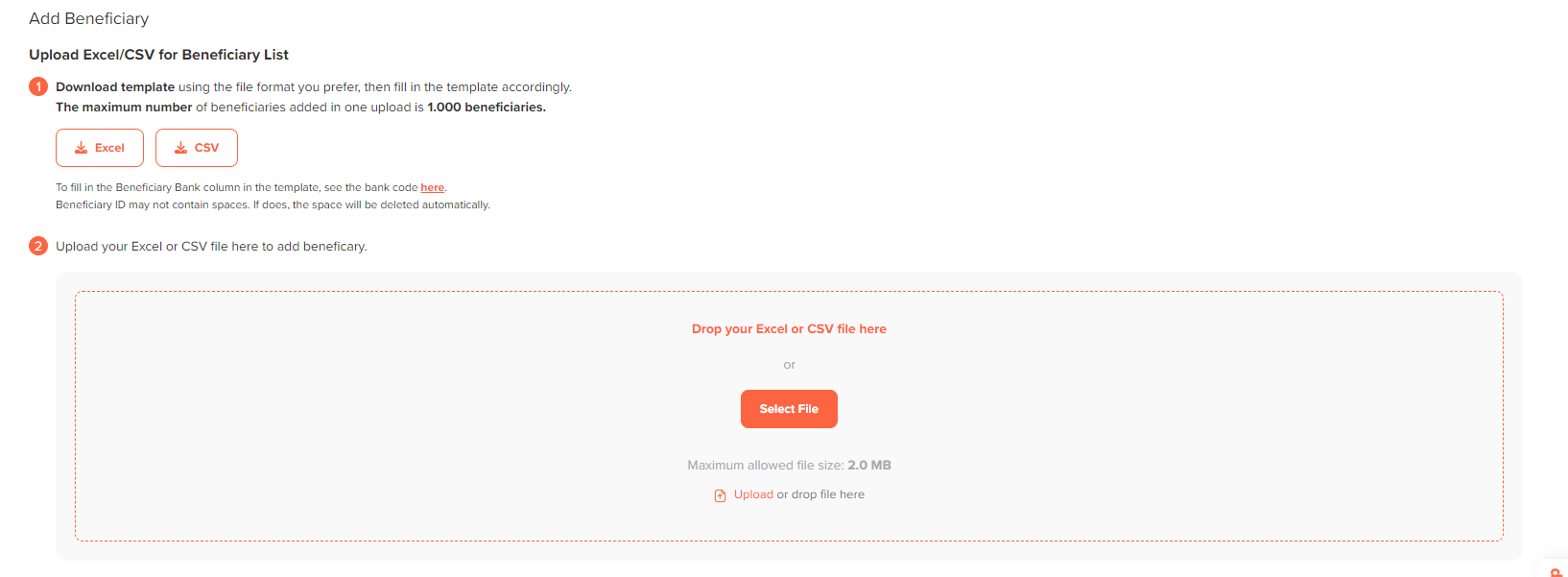
- Update the data in the Excel/CSV file.

- Input Beneficiary ID
- Input Bank code
- Input Beneficiary Name (optional)
- Input Beneficiaru Email (optional)
- Upload Excel/CSV file.
- Update the data in the Excel/CSV file.
-
Add Beneficiary List: Review the beneficiary list and click the
Savebutton.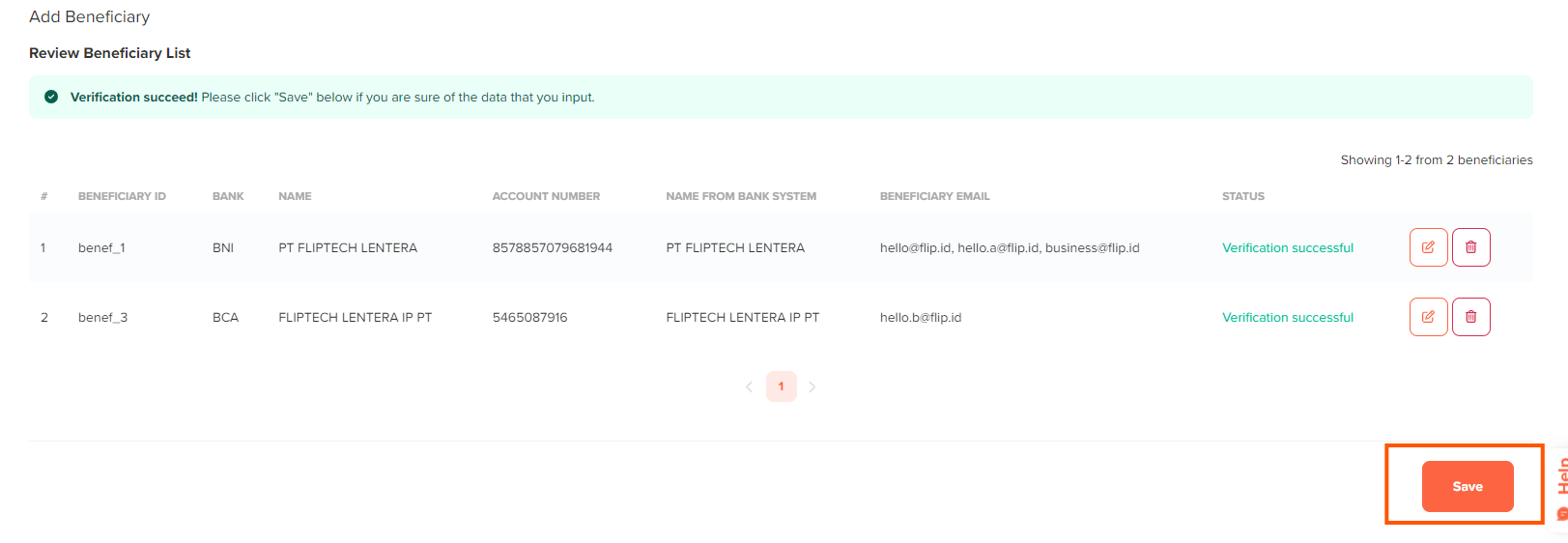
- If you need to add another beneficiary, repeat from step 2.
-
Continue to Transaction: After finish add the beneficiaries, you can continue to create transactions. There are two methods to create using Beneficiary List or Upload Excel/CSV.
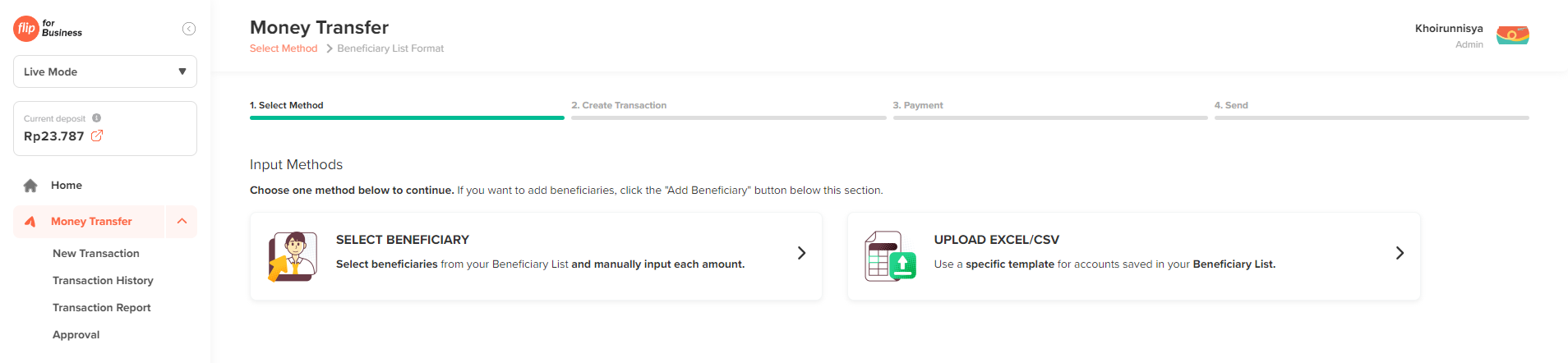
- Using Beneficiary List
- Using Upload Excel/CSV
5a. Select Beneficiary List: Choose which Beneficiary that you want to disburse the money to from Beneficiary List. Then click
Continue.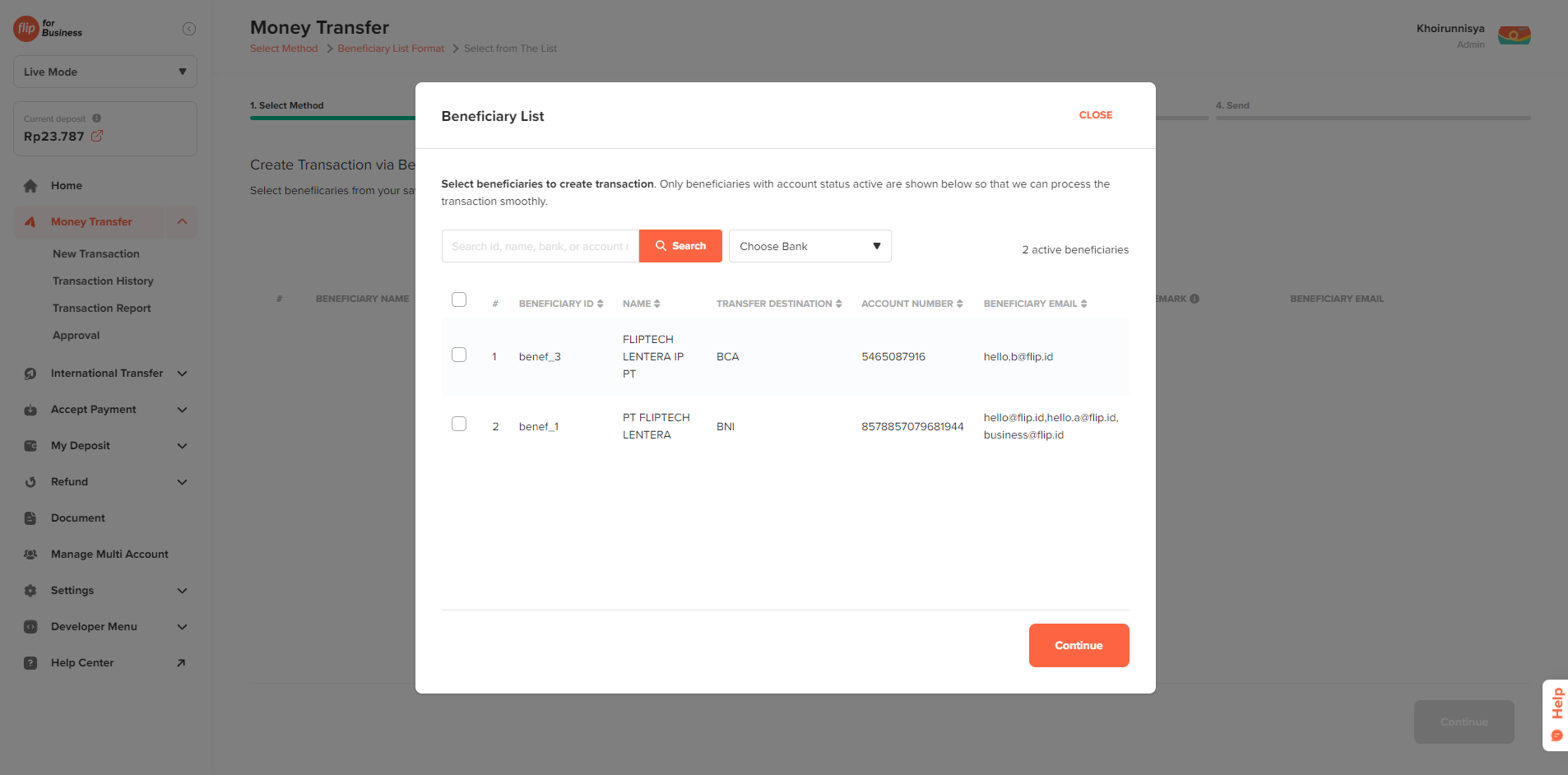
5b. Input amount transaction: After input the amount, you can click
Continue.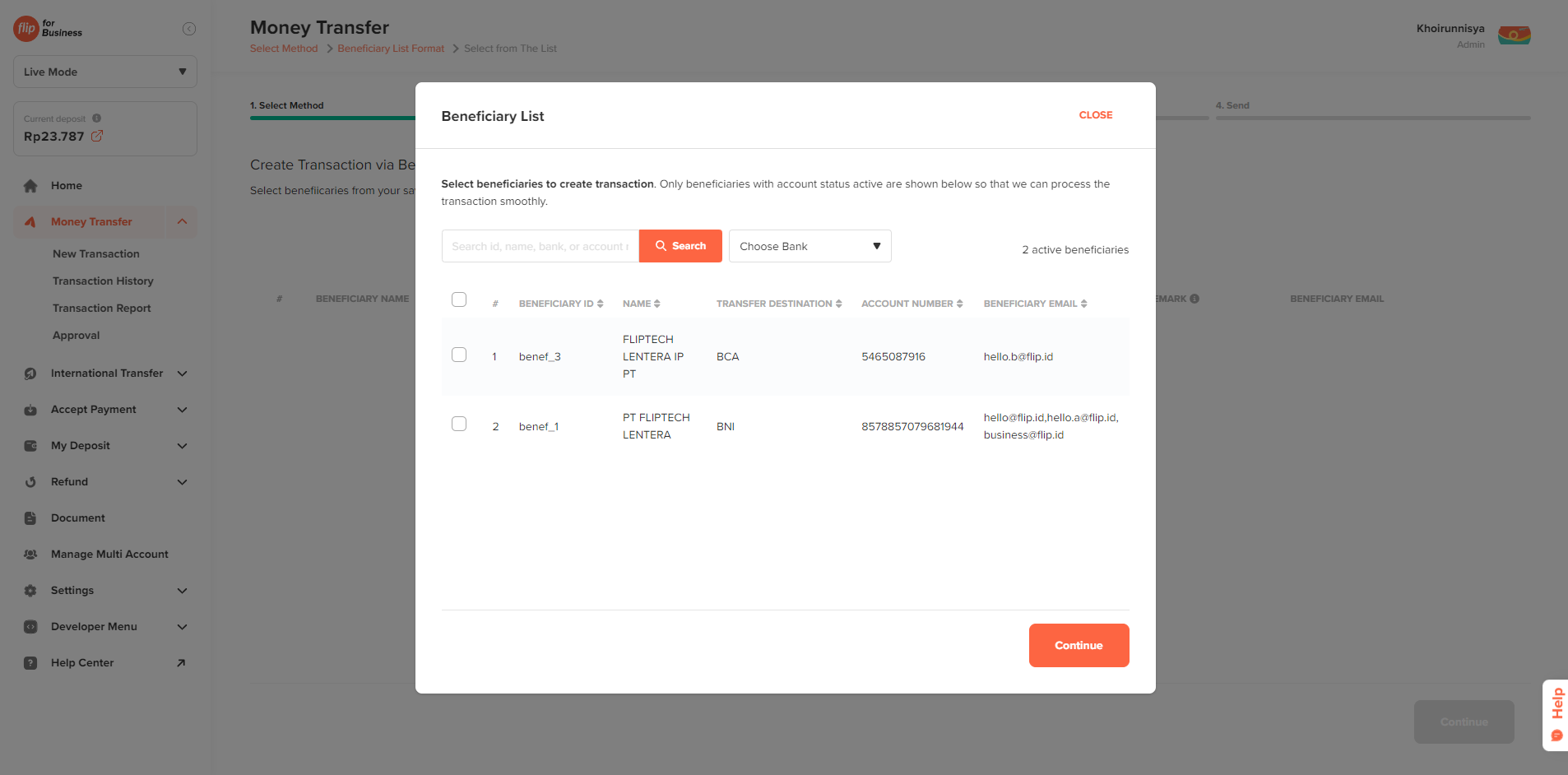
5c. Download sample file:
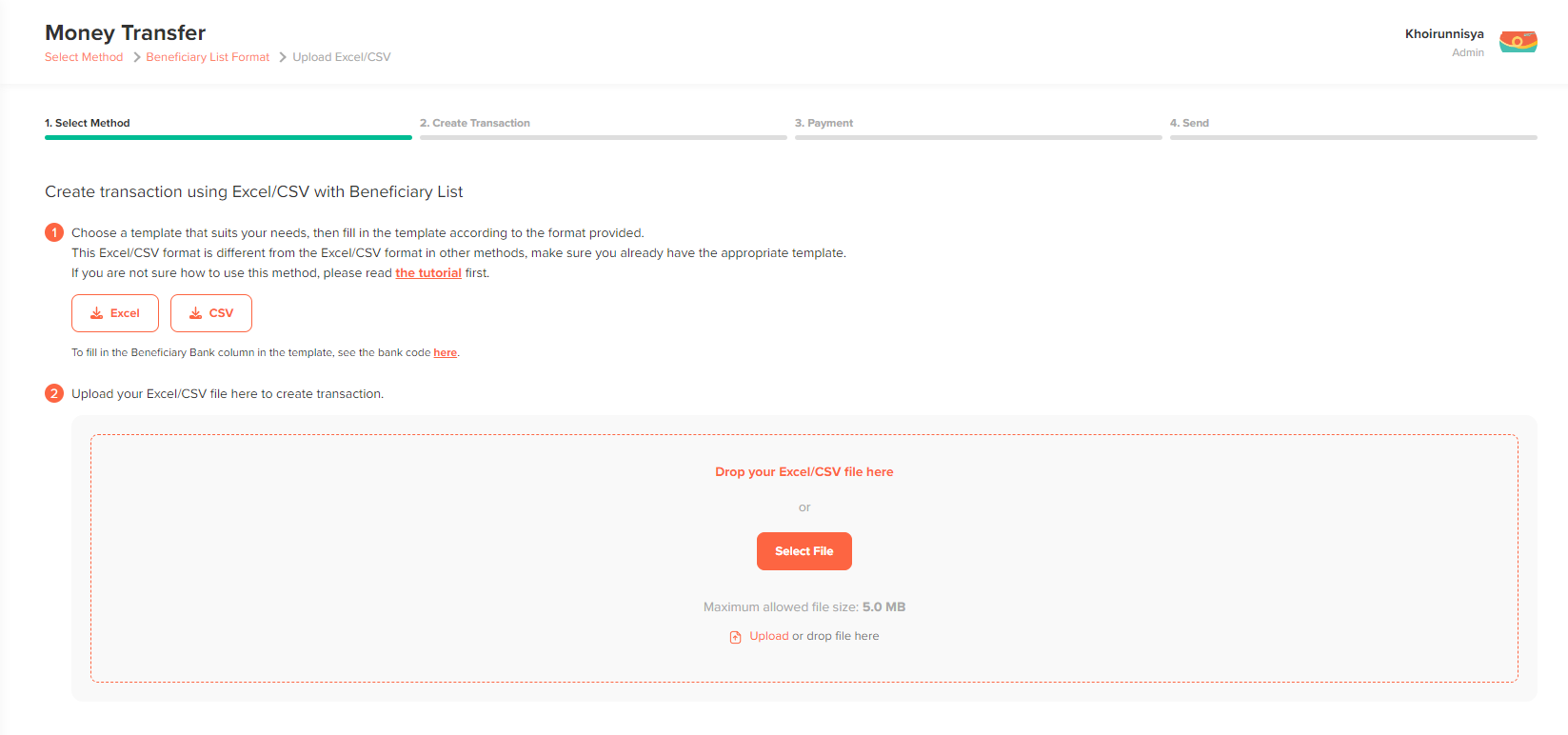
-
Update the data in the Excel/CSV file.

- Input Beneficiary ID
- Input Amount transaction
- Input Remarks (optional)
- Input Beneficiary Name (optional)
- Input Transaction ID (optional)
-
Upload Excel/CSV File.
5d. Continue to Payment: After adding transactions, click the
Continue to Paymentbutton.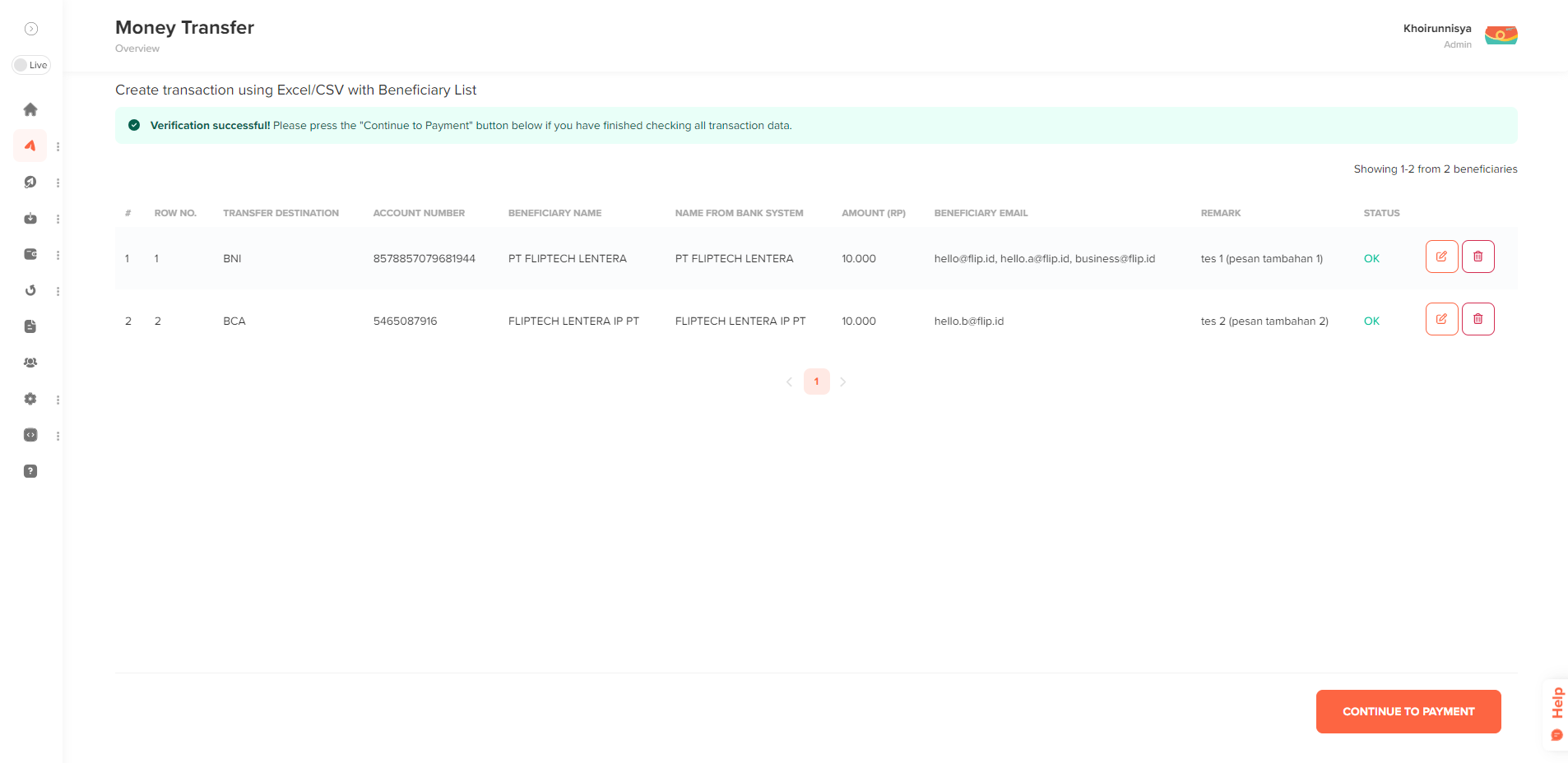
Next Steps:
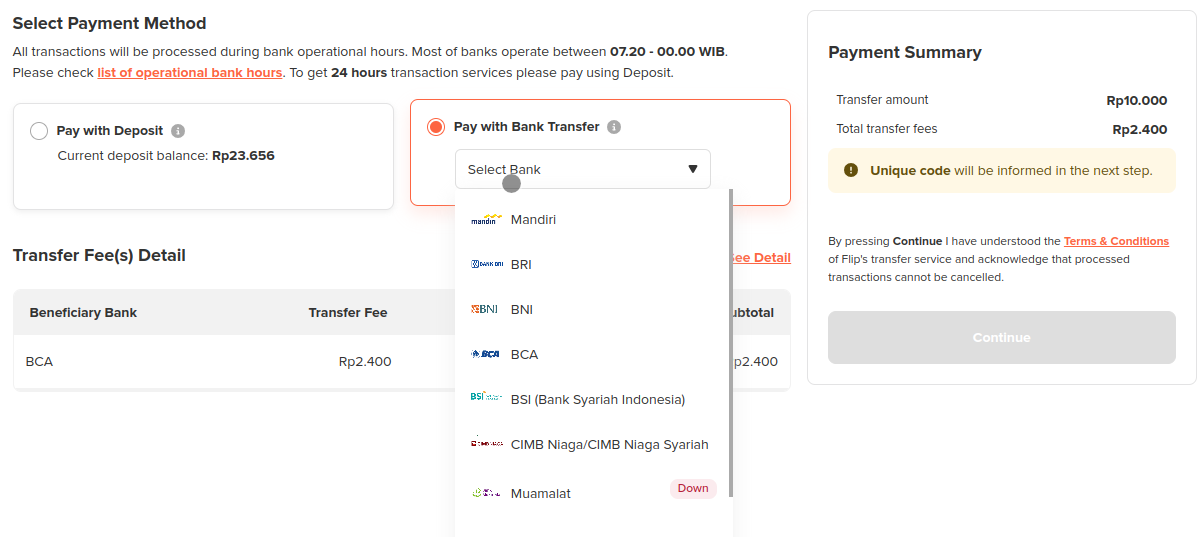
- Select Payment Method: Choose the payment method for disbursing the funds, and click "Continue". There are two options:
- Option 1: Pay with Deposit The transfer will be made using your available Flip deposit balance.
- Option 2: Pay with Bank Transfer Flip will provide a unique amount that you need to transfer to Flip, which will then be used as the source of funds.
- Option 1: Pay with Deposit
- Option 2: Pay with Bank Transfer
- Proceed with Payment Option 1:
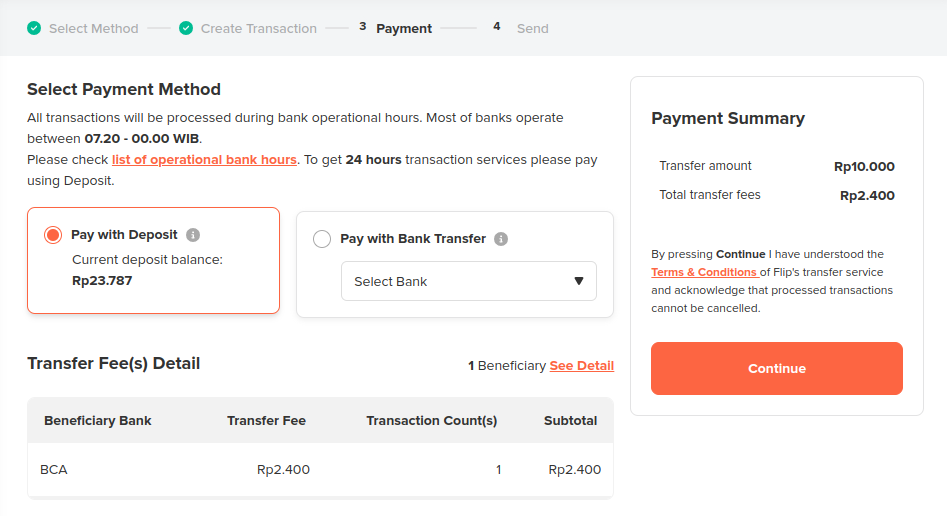
After click Continue to Payment You need to choose "Pay with Deposit" and click "Continue".
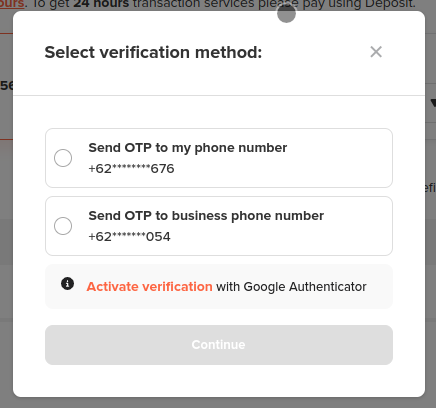
Then you will be prompted to choose the phone number, that will be used to receive the OTP via SMS for verification.
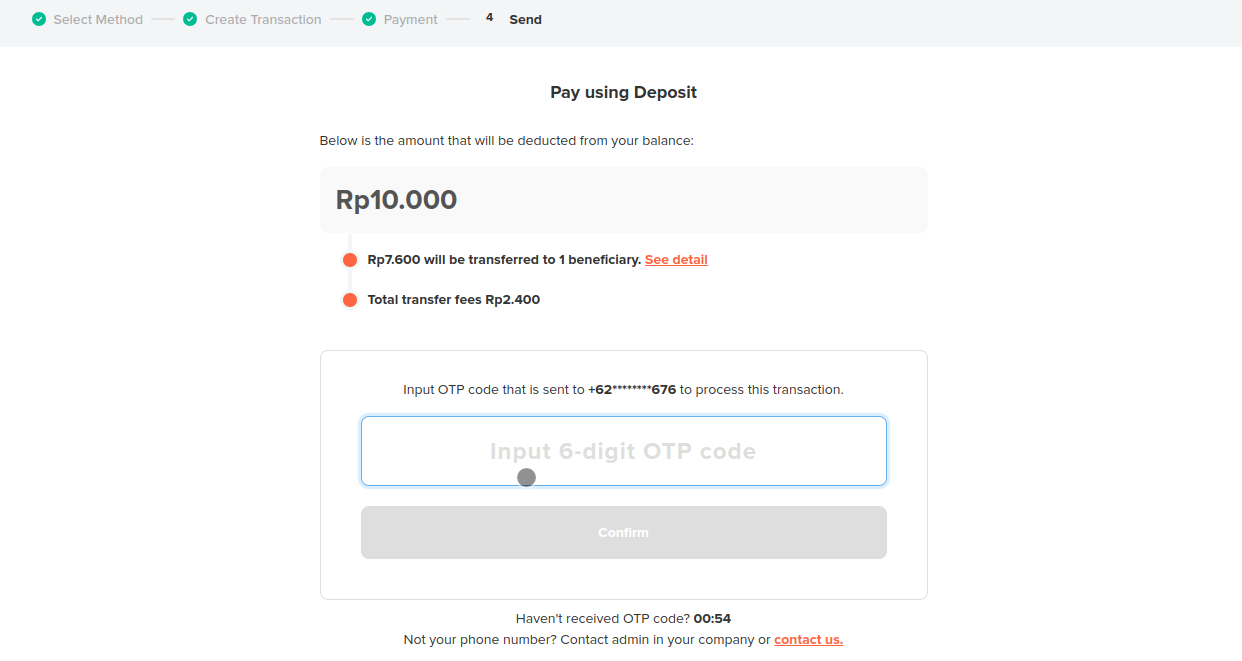
- Input 6 digits OTP and click "Confirm"
- Proceed with Payment Option 2:
After click Continue to Payment You need to choose "Pay with Bank Transfer" and click "Continue".
And You will be redirected to a page with details of the amount and Flip bank account number to which you need to transfer the funds.
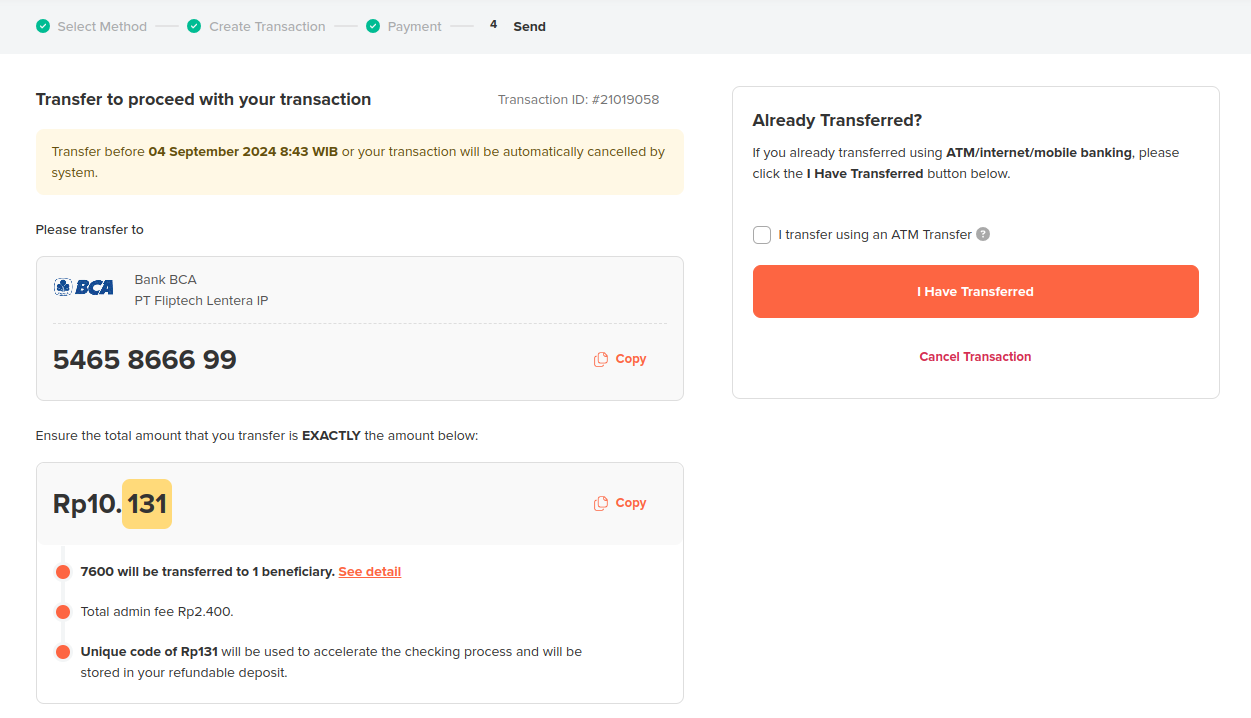
- Confirm Payment: After transfer your fund, you need to click "I Have Transferred"
- Transaction History: After completing the steps, you will be redirected to the
Transaction Historymenu, where you can check your transaction status.